
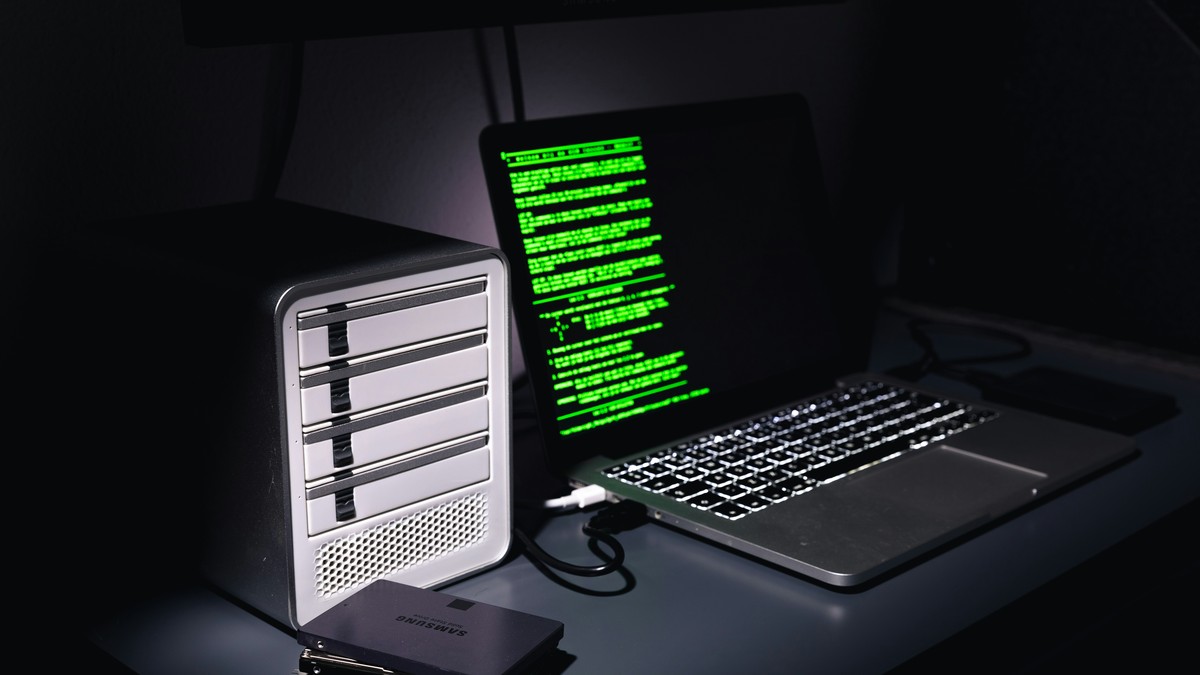
One lost drive has ended careers. It’s not dramatic hyperbole; photographers who lose unbackupped images lose livelihood, trust, and years of work in an afternoon. The 3-2-1 backup rule is industry standard: three copies of data, on two different media types, with one copy offsite. This isn’t optional; it’s foundational infrastructure.
- Focus on: Understanding the 3-2-1 Rule.
- Focus on: Tier One: Primary Working Drive.
- Focus on: Tier Two: Local Backup (First Copy).
- Focus on: Tier Three: Offsite Backup (Second Copy).
Understanding the 3-2-1 Rule
Three copies: your working files plus two backups. Two media types: avoid having all copies on similar hard drives. One offsite: protect against theft, fire, or local disaster. Any backup strategy missing one of these elements has a single failure point that can destroy everything.
Tier One: Primary Working Drive
Your working drive is where you shoot, sort, and edit. Buy a fast, large capacity internal SSD or external Thunderbolt/USB-C drive. 2-4TB is common for active projects. This drive isn’t a backup; it’s your workspace. Don’t use it as backup. It will fail eventually; that’s the point of the other tiers.
Strategy: manage this drive aggressively. Move old projects to archive after final delivery. Keep current year’s work here only. This keeps your workspace fast and reduces what needs backup.
Tier Two: Local Backup (First Copy)
This is backup one. Buy a second hard drive. a different type than your primary. If your primary is an SSD, this backup is a rotating platter drive. If primary is external SSD, backup is a desktop drive. Physical difference matters; different drive types fail differently.
Capacity: match or exceed your primary drive. 4-8TB is typical.
Workflow: connect this drive once weekly. Use backup software (Mac Time Machine, Windows File History, or robust tools like Backblaze, Carbonite) to backup your primary drive automatically. Don’t manually drag folders; automation ensures consistency. Set and forget.
Storage location: keep this drive in a different location than your primary drive. Not your bag with your camera. Not your desk. Different room. If your studio floods or burns, one drive survives elsewhere.
Tier Three: Offsite Backup (Second Copy)
This is backup two, and it must be geographically separate. Two strategies:
Cloud Backup (Cloud-Native)
Subscribe to cloud backup: Backblaze, CrashPlan, or Arq. These services back up everything automatically. Initial backup takes weeks; thereafter it’s incremental and runs in background. Cost: typically $7-15/month for unlimited capacity. They handle encryption, redundancy, and disaster recovery. You don’t maintain the infrastructure.
Pros: truly offsite, automatic, no hardware to maintain. Cons: depends on internet speed (initial backup is slow), monthly subscription cost, subject to provider changes.
Hard Drive Backup (Manual Offsite)
Buy a third drive. Once monthly, connect it and clone your primary drive to it completely (using cloning software like Carbon Copy Cloner or Macrium Reflect). Store this drive offsite: at a trusted friend’s house, office, safety deposit box, or parent’s home. Rotate monthly; next month’s drive goes to different location.
Pros: one-time cost (no subscription), complete control, you know where your data is. Cons: manual process (easy to forget), requires discipline, you manage hardware reliability.
Hybrid Approach (Best Practice)
Use cloud backup plus yearly external drive backup. Cloud handles daily/weekly redundancy. External drive stores a complete snapshot once yearly for archive reference. This covers continuous protection (cloud) plus immutable archive (offline drive). Total cost: ~$150/year.
Practical Implementation Workflow
Daily (Automatic)
No action required if using cloud backup. Software runs in background. Working on primary drive is all you do.
Weekly
Connect local backup drive. Backup software syncs primary to backup automatically. Disconnect and store drive offsite. Time investment: five minutes.
Monthly
If using manual offsite backups: connect offsite drive and clone primary drive to it. This takes 2-4 hours depending on data volume but requires no active work from you (it’s automated cloning). Once done, store drive in designated offsite location. Rotate next month’s drive to different location if possible.
Yearly
Review backup strategy. Test restore: restore a random older file to verify backups are actually readable. This catches silent failures before they matter. Update drives as needed (drives age; replace any older than five years).
Naming and Organization
Label all drives clearly: “Primary Work,” “Backup 1 – Local,” “Backup 2 – Offsite,” plus the current date. Include your contact info. If a drive is ever found or accessed, clear labeling ensures it gets returned or handled correctly.
Organize internal folders by year and project. Use consistent naming. This makes verification and restore faster.
Choosing Backup Hardware
Drive reliability matters. Brands like Western Digital, Seagate, LaCie, and G-Technology have strong track records. Avoid ultra-cheap drives; drive failure is the most likely reason a backup fails.
For external drives, Thunderbolt is faster but USB-C works well and has broader compatibility. NAS (network-attached storage) adds complexity; for individual photographers, external drives are simpler and equally effective.
Testing Your Backup
A backup you’ve never tested is a backup you’re trusting blindly. Once yearly, restore a file from each tier. primary to backup 1, backup 1 to backup 2. Verify the file is readable and intact. This is the only way to know your backups actually work.
When Disaster Hits
If your primary drive fails, you stop losing data. Restore from Backup 1. If your primary and Backup 1 both fail simultaneously (extremely rare), you have Backup 2 offsite. If you only had one backup and it fails before your primary, you’re unprotected. back to the beginning. 3-2-1 is safety through redundancy.
This infrastructure costs $500-1000 initially and ~$15/month ongoing (cloud option) or $0/month (manual offsite option). The cost of re-shooting a year’s worth of work or rebuilding a client archive is orders of magnitude higher. Backup is insurance that actually pays out.